¶ Request Submission
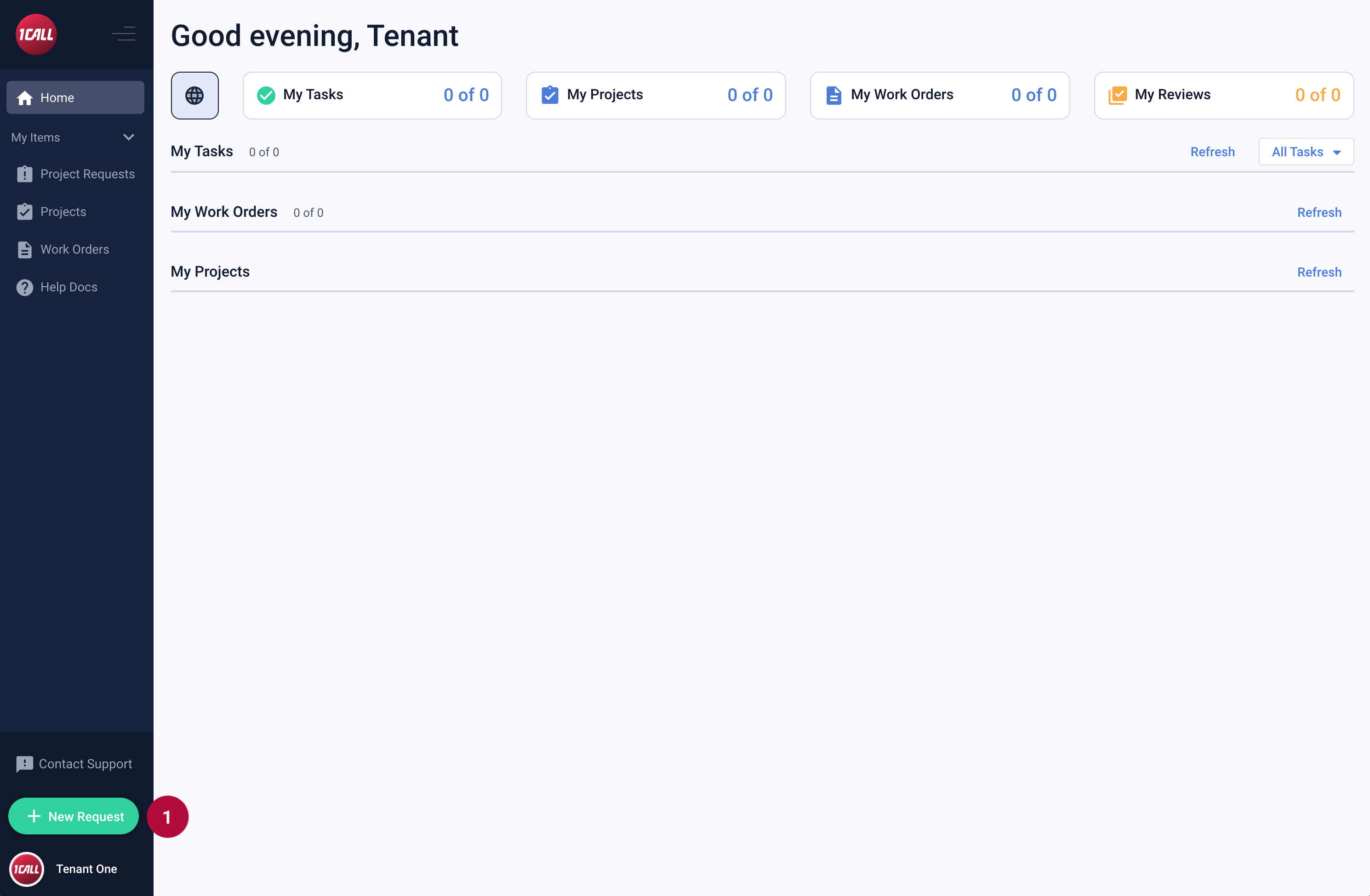 |
|
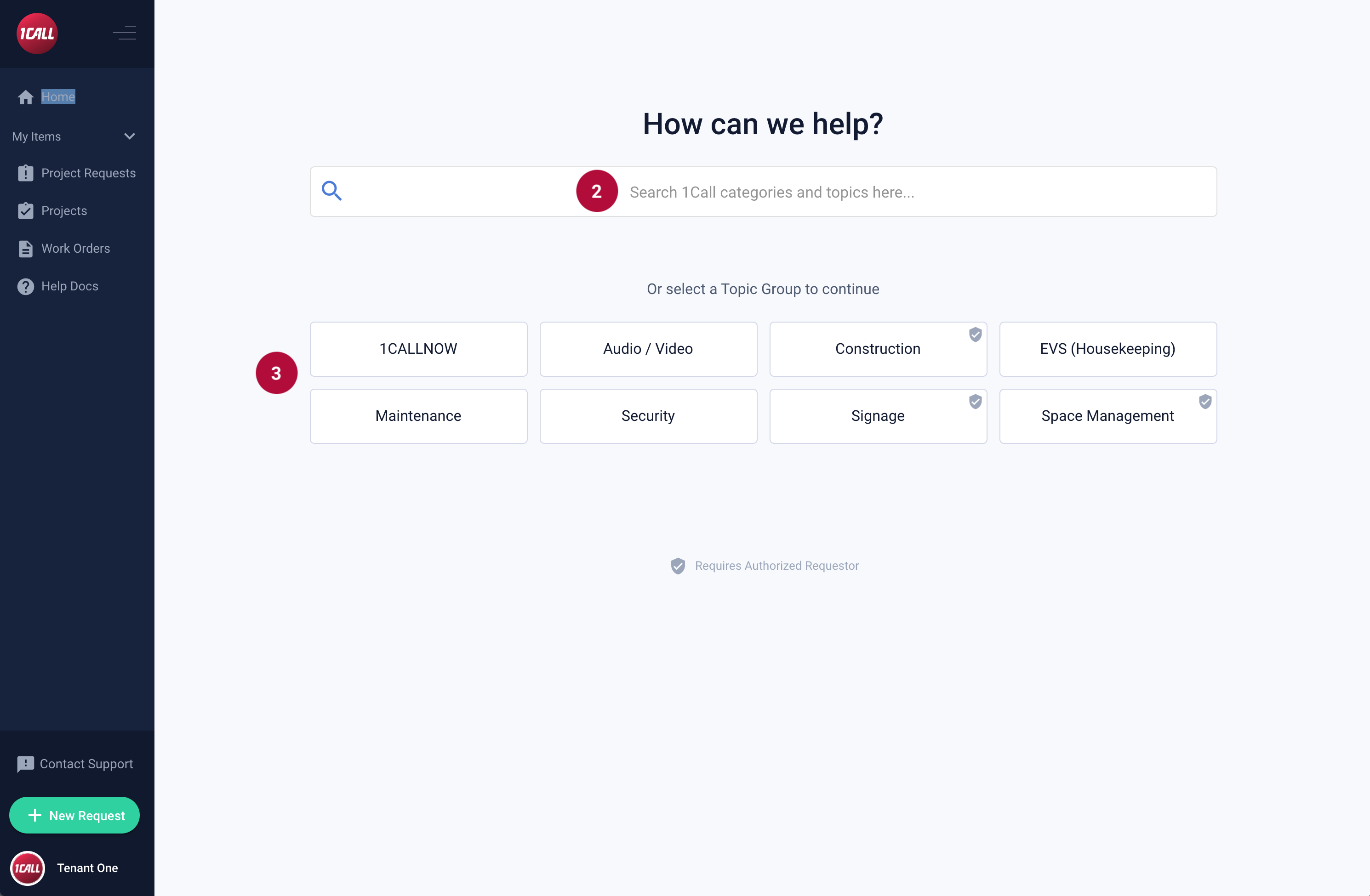 |
If you want to search for a topic category, got to Step 2a below Searching helps you quickly find and select the topic, saving you multiple clicks as shown in Step 3. If you prefer to manually click through the Topic Hierarchy, skip step 2 and follow Step 3a below. |
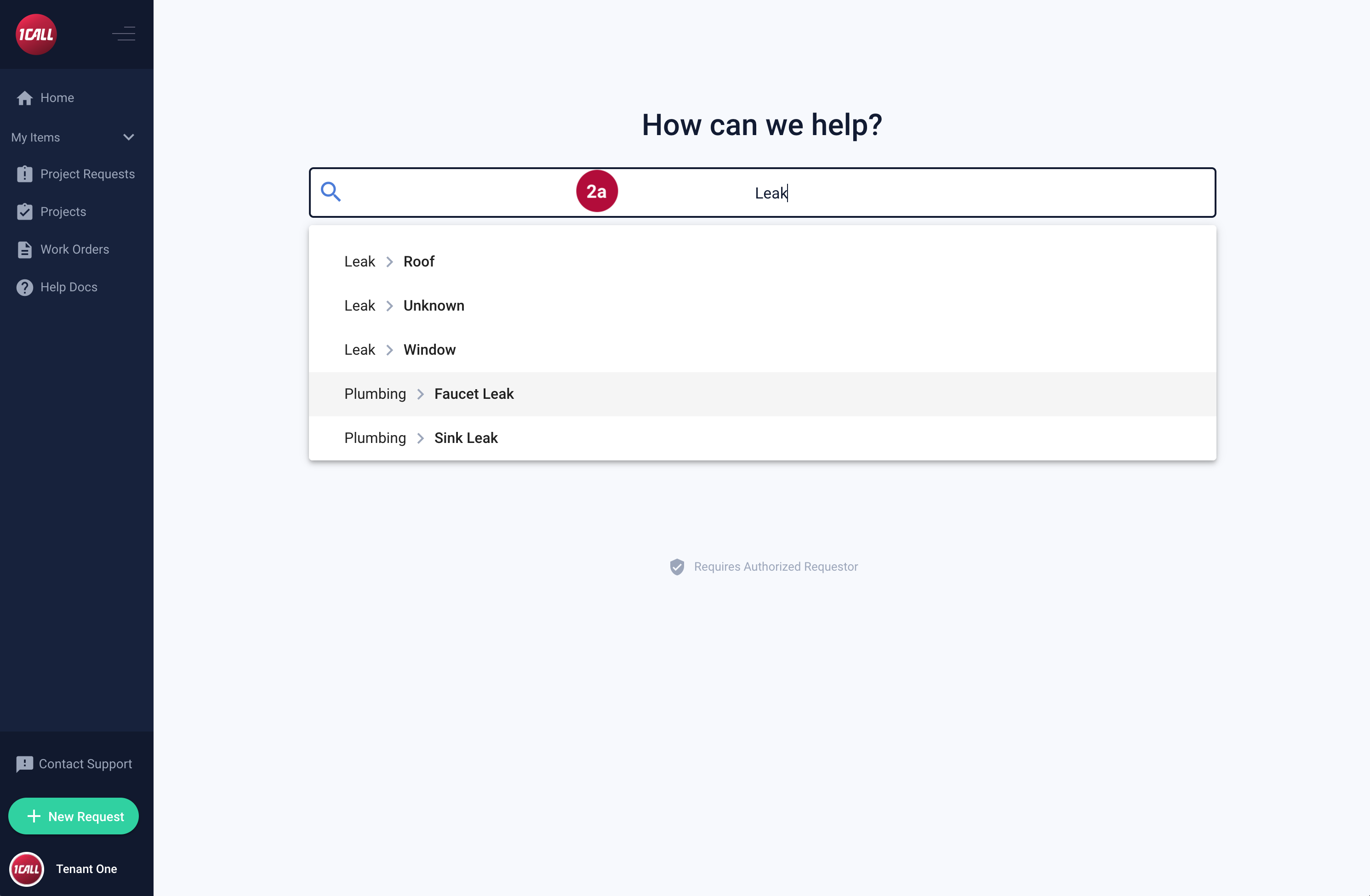 |
2a. Type a word into the search bar to search our Topic selections and select a topic, then skip to Step 4. For example, in the screenshot to the left, the word Leak as typed in the search bar and there were several topic selections that became visible. |
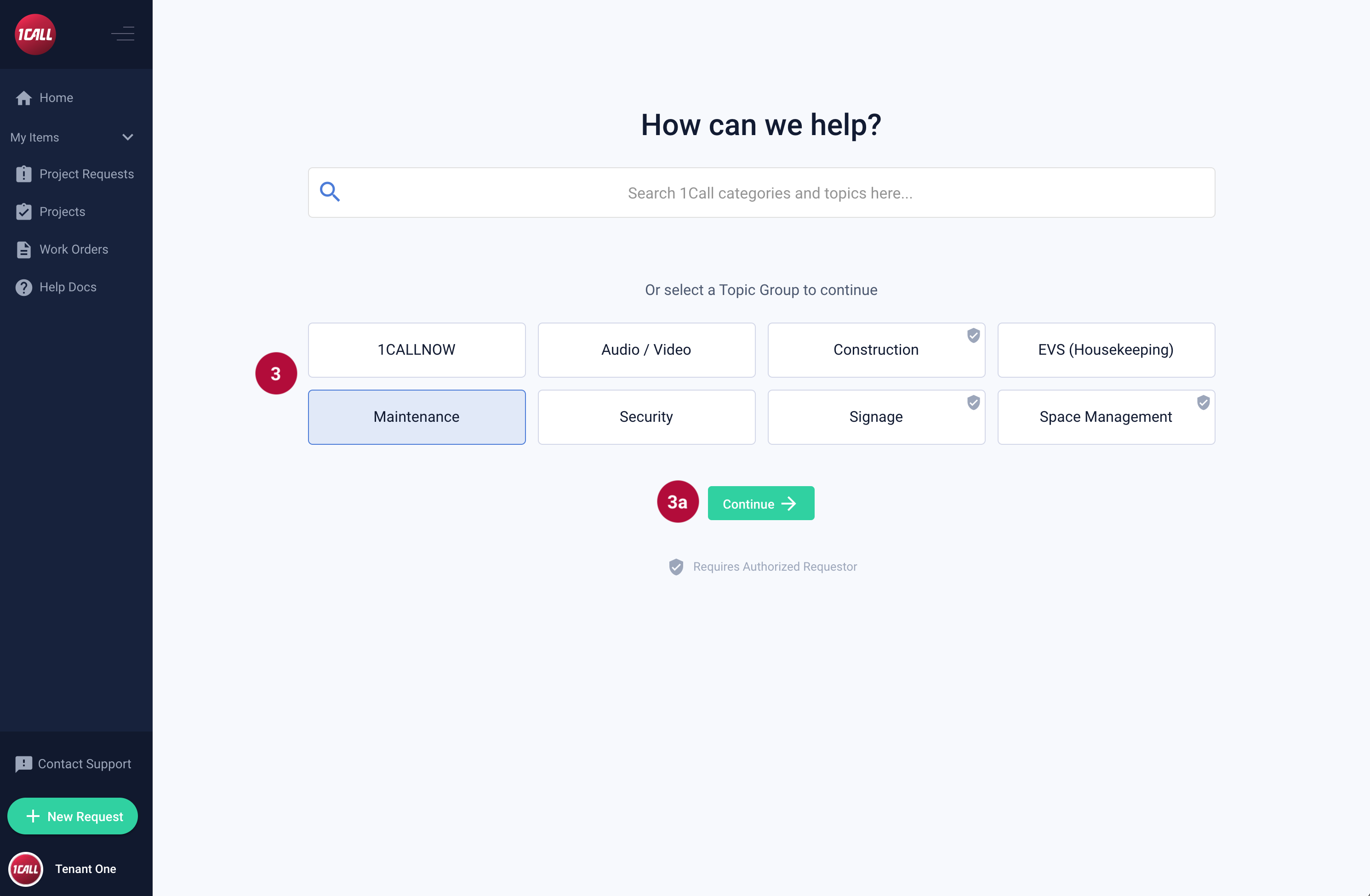 |
3. Select a Topic Group 3a. Select the Continue button |
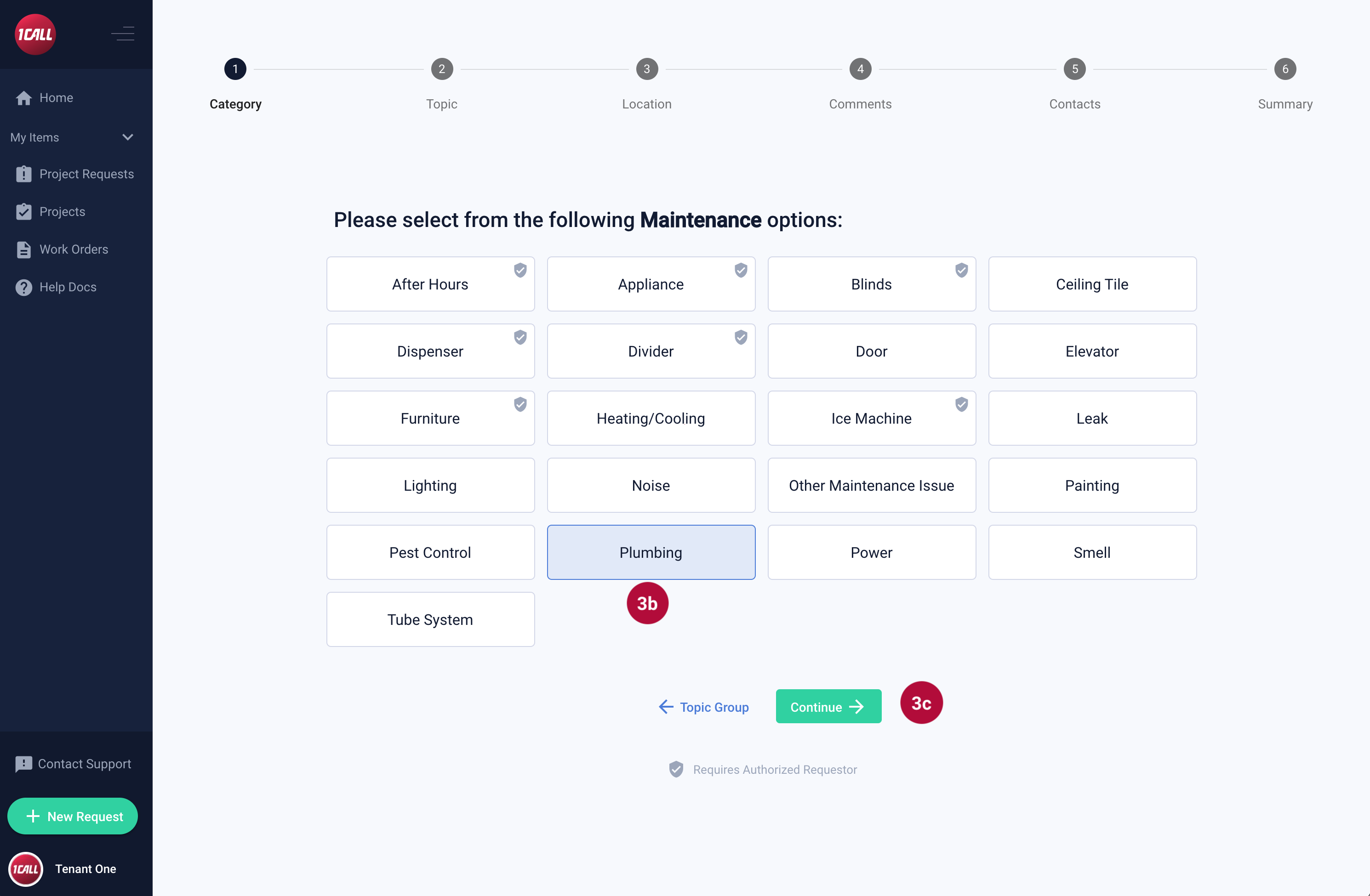 |
3b. Select a Topic Category 3c. Select the Continue button |
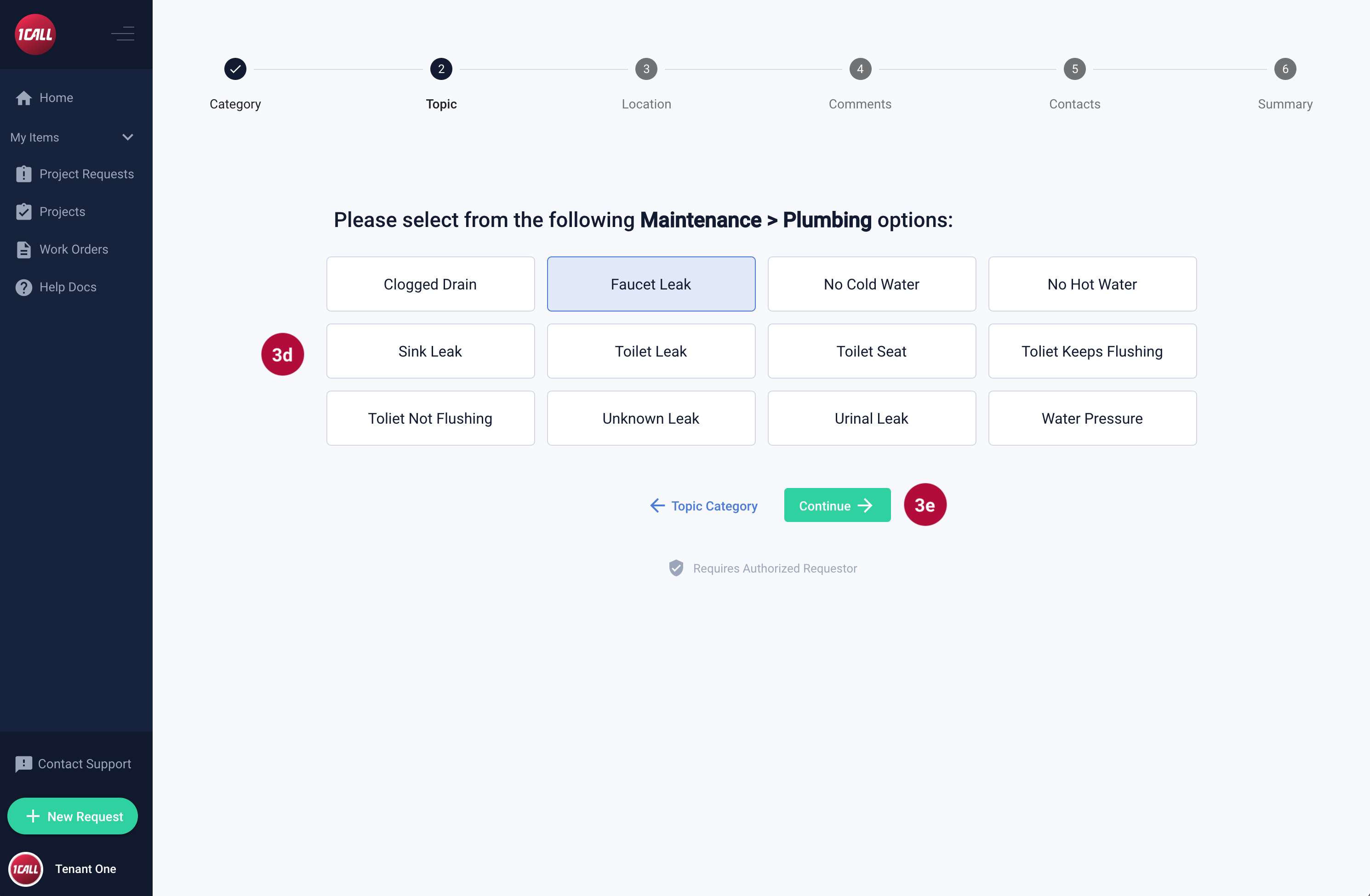 |
3d. Select a Topic 3e. Select the Continue button |
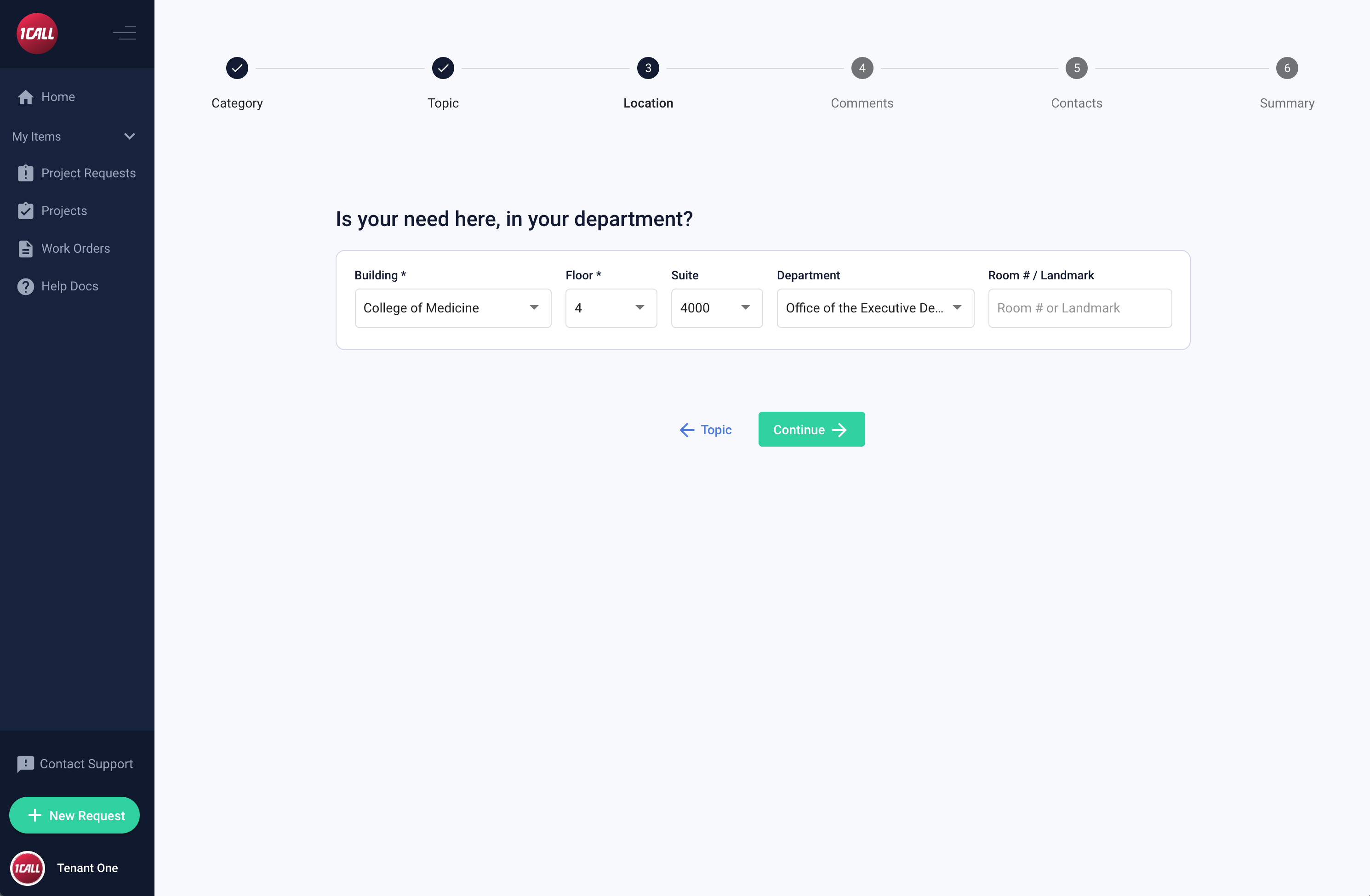 |
The location section displays and by default the location is auto selected according to the location you input on your user profile page. If these fields are blank, then you have not filled out the location information on your user profile. Click this link to see how to edit your profile and add your location information. If the location of the request is the same place as your user profile location, continue to Step 5. If the location of the request is different than your user profile location, you can change the fields in Step 4. |
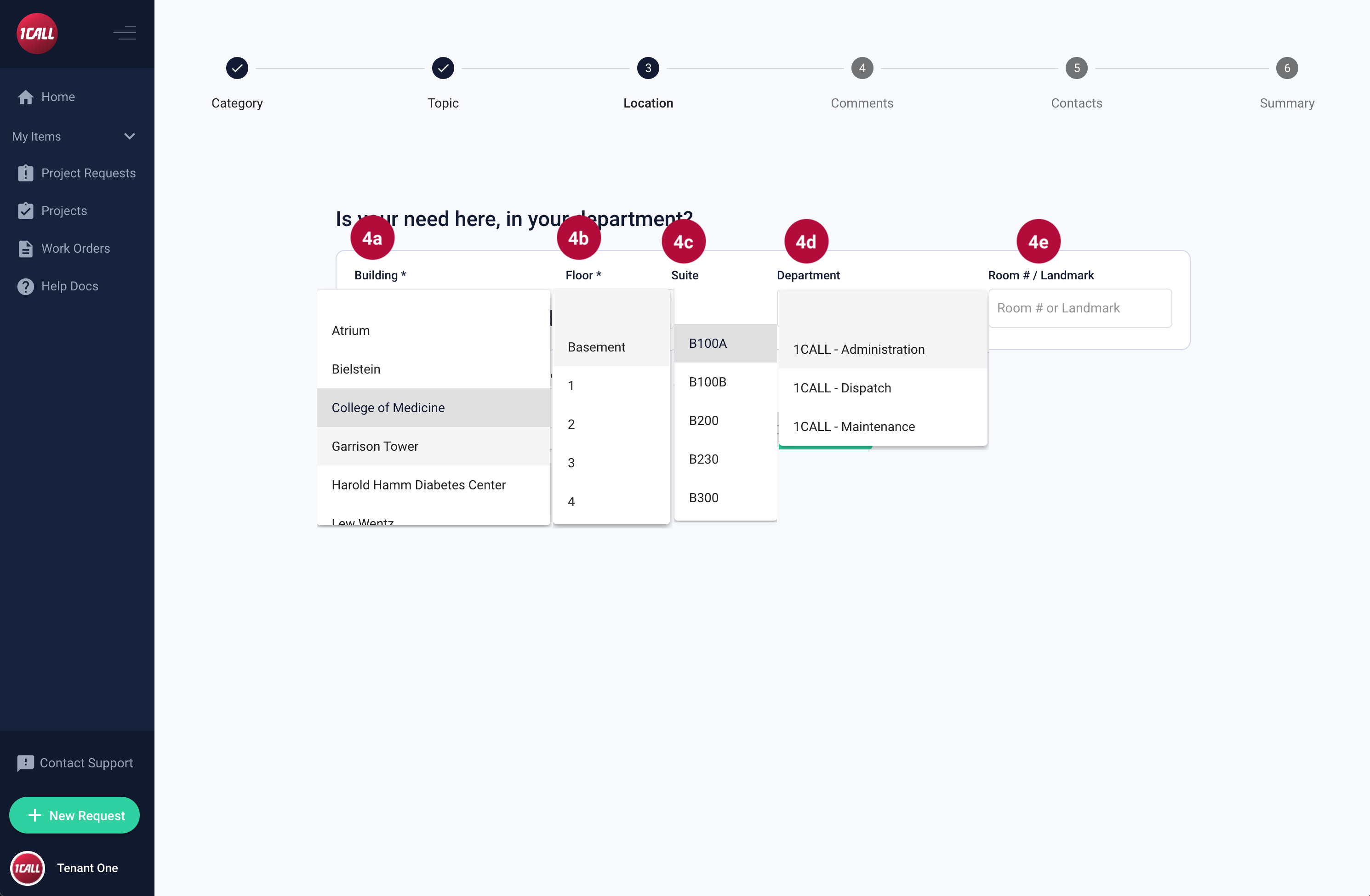 |
4a. Building (this field is required): Select the dropdown under Building and find the building that your request is related 4b. Floor (this field is required): Select the dropdown and choose the floor that relates to your request 4c. Suite (optional, but helpful): Select the dropdown and choose the suite that relates to your request, if applicable 4d. Department (optional, but helpful): Select the dropdown and choose the department that relates to your request, if applicable 4e. Room # / Landmark (optional, but helpful): Enter a Room # or Landmark
Go to Step 5 |
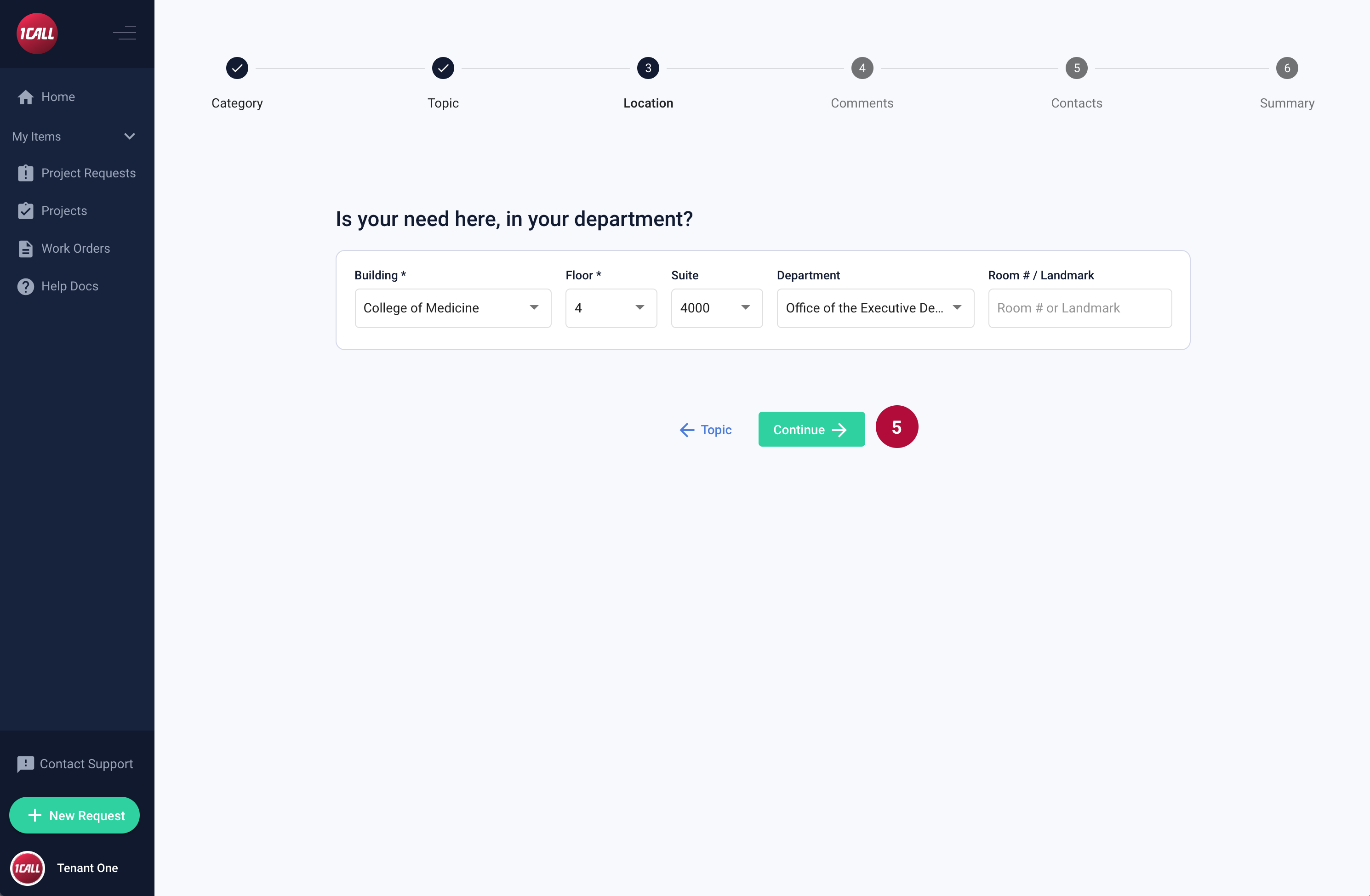 |
5. Select the Continue button
|
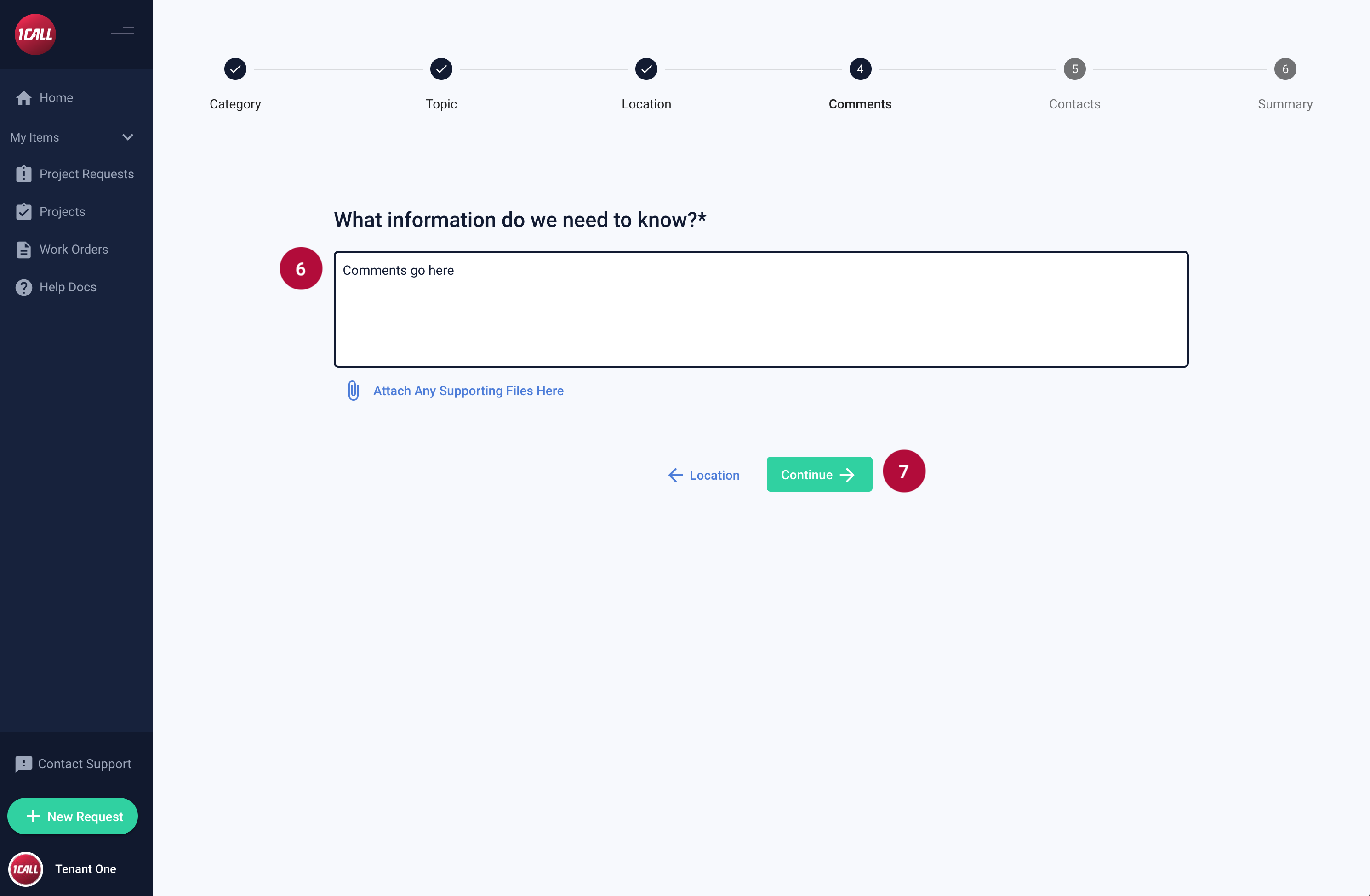 |
6. Enter any comments about the request 7. Select the Continue button |
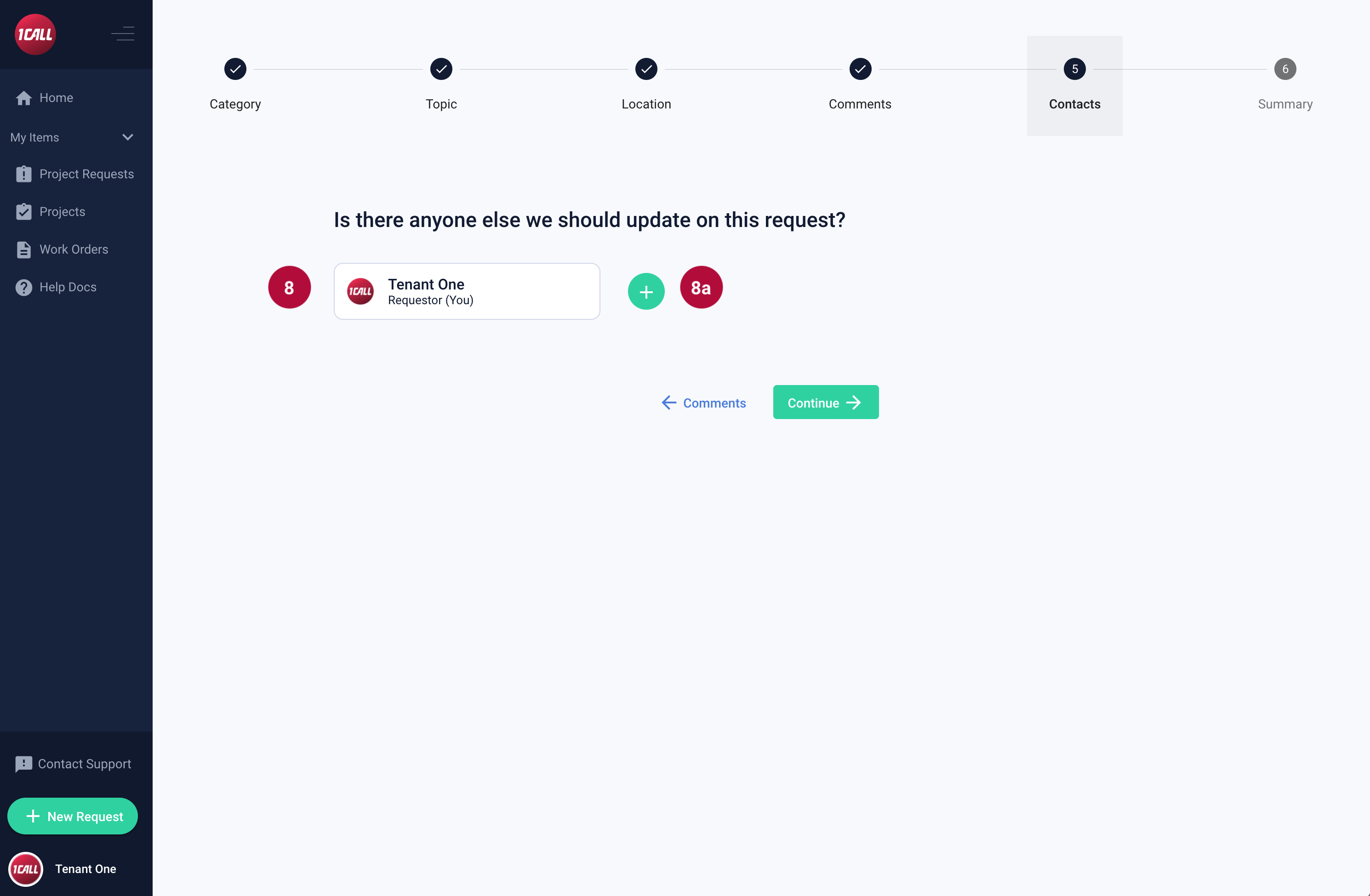 |
8. A contact or follower can be added to the request. This is optional. By default, you as the requestor are added as a follower onto the request by default. If you would like to add another follower to the request continue to 8a. Otherwise, continue to Step 9. 8a. Select the green + icon to add another follower. |
|
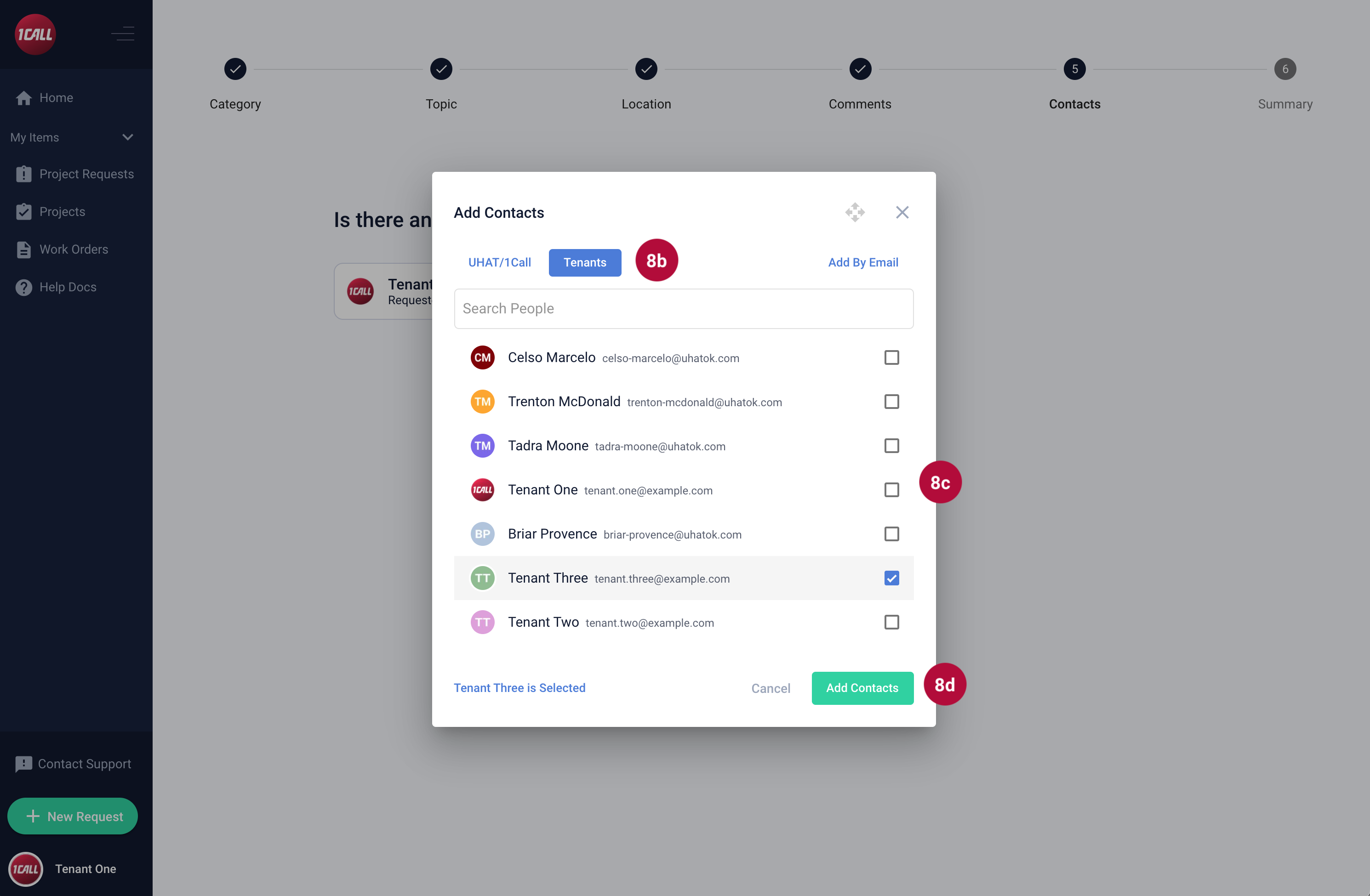 |
8b. Select Tenants Filter and type a name in the “Search People” filed. 8c. Select the checkbox to the right of the person you want to add. 8d. Select the Add Contacts button |
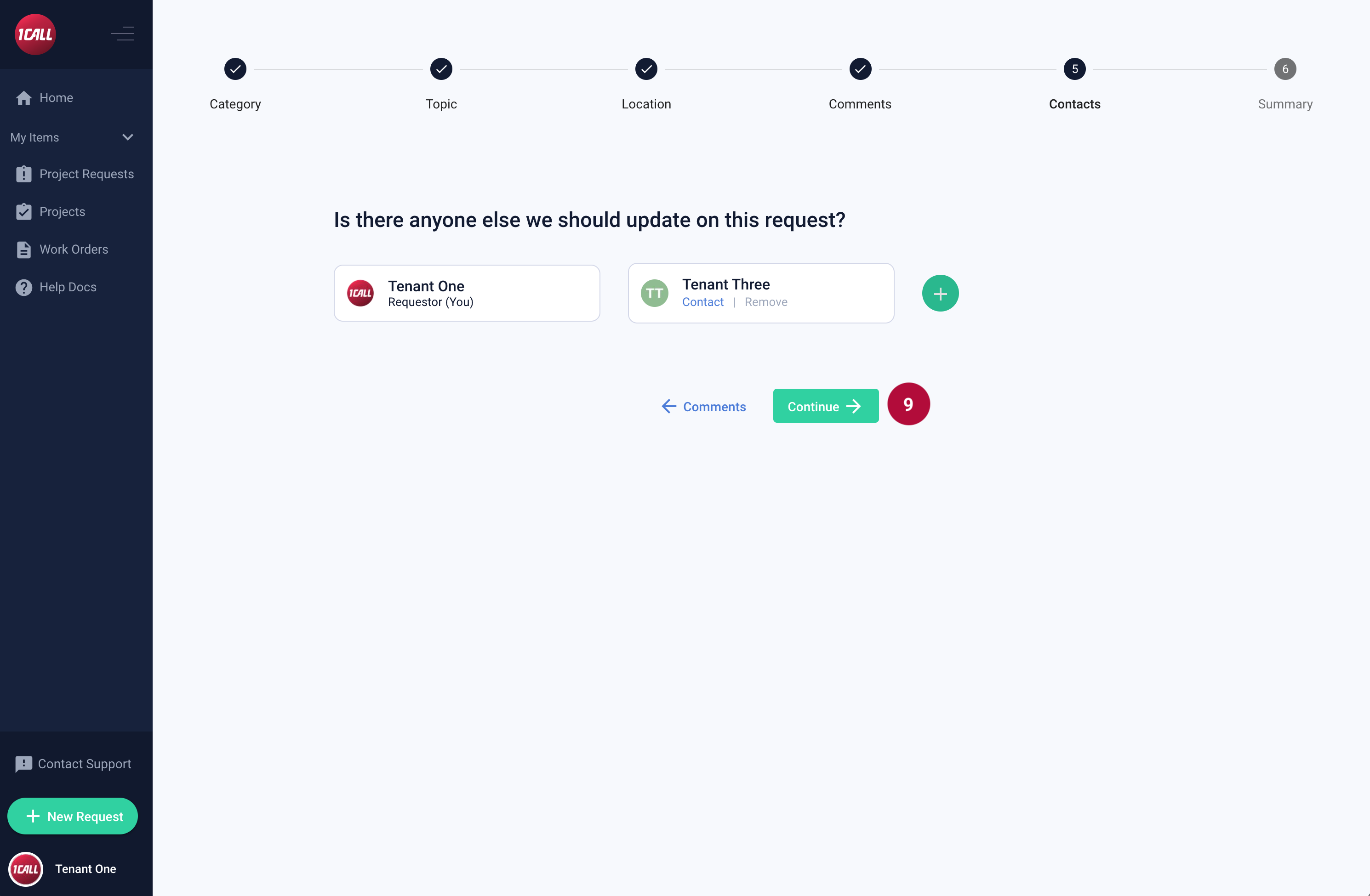 |
9. Select the Continue button
|
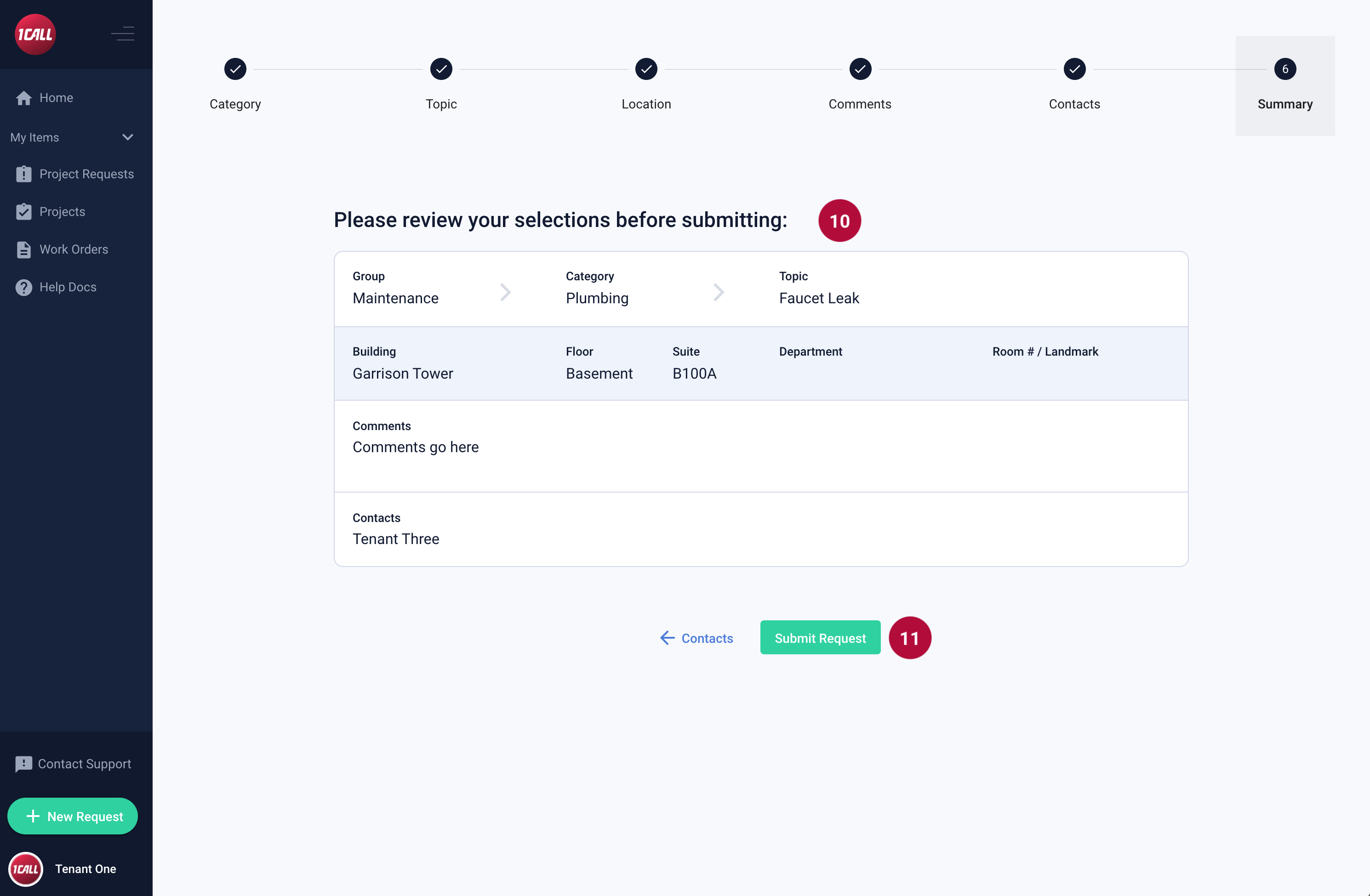 |
10. Review the Request Summary page to ensure your selections are accurate. 11. Select the Submit Request button |
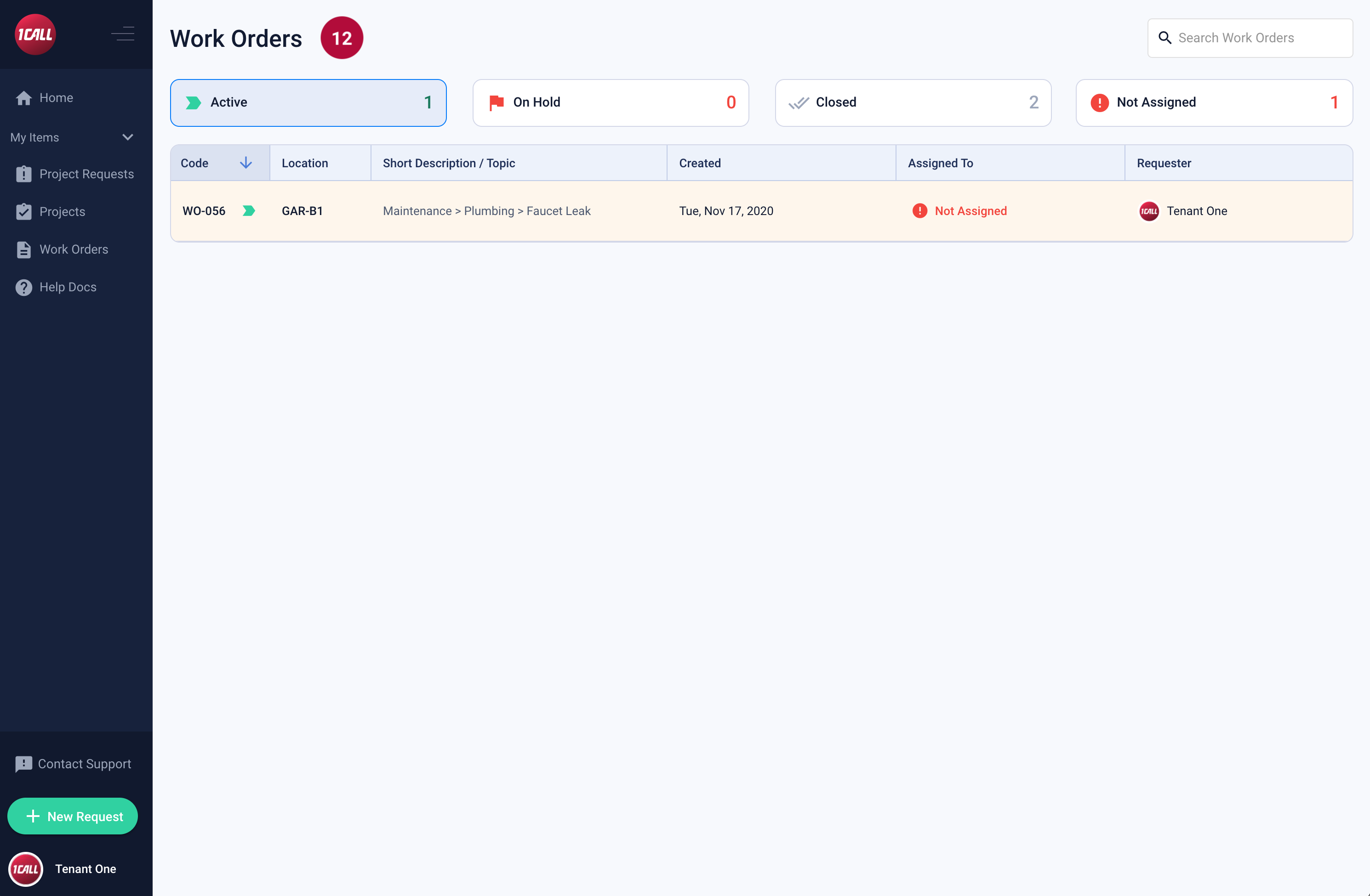 |
12. Your work order will show up in your Work Orders list and will have a light yellow background which means the request is not currently assigned to a 1CALL team member. |